letterbucket.com subdomain.
Custom domains require a small DNS configuration on your side. Once verified, LetterBucket will automatically handle SSL, routing, and ongoing availability.
Custom Domains are part of the Growth plans, if you are in a lower plan, you’ll need to upgrade before being able to configure it
The process is complex so if you are having a hard time, follow this guide step-by-step to ensure that your configuration is perfect!
1. Go to Settings -> Custom domain
In your newsletter settings you’ll find the Custom Domain tab. Click on it and you’ll be able to start the process.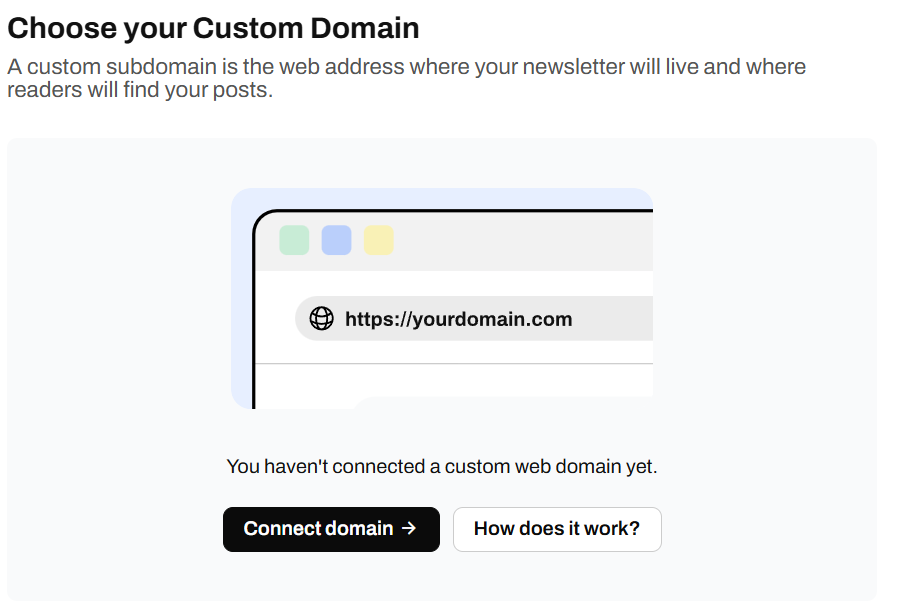
2. Click on Connect domain
In this step, you choose the domain where your newsletter will be hosted.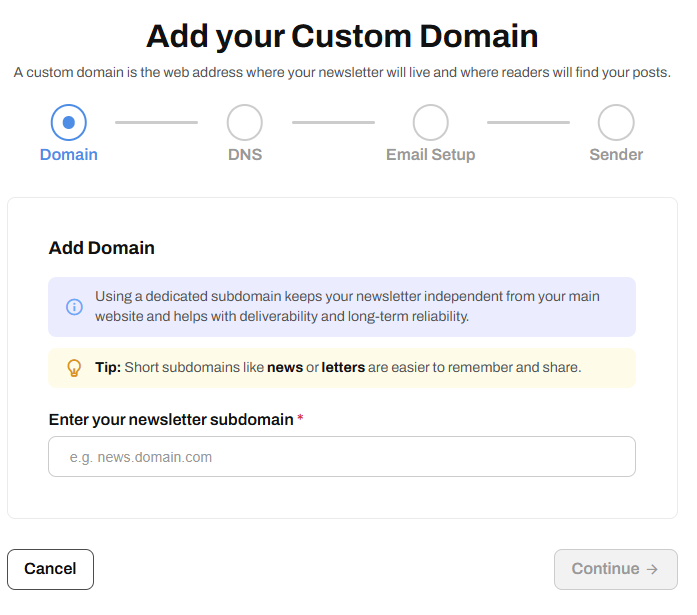
news.yourdomain.com or letters.yourdomain.com. We strongly recommend using a subdomain instead of your main website domain. This keeps your newsletter infrastructure isolated and helps with deliverability, stability, and long-term reliability.
Short and clear subdomains are easier to remember and share with your audience.
Once you’ve entered your subdomain, click Continue to move on to the DNS setup, where you’ll configure the required records to verify and activate the domain.
3. Add DNS Records
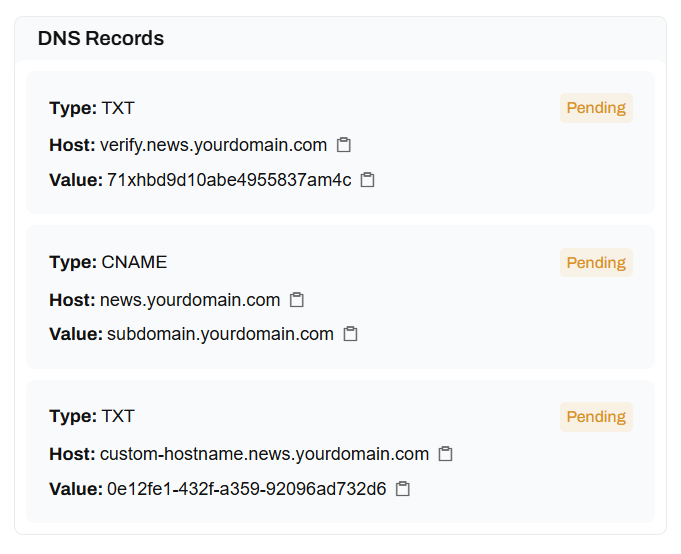
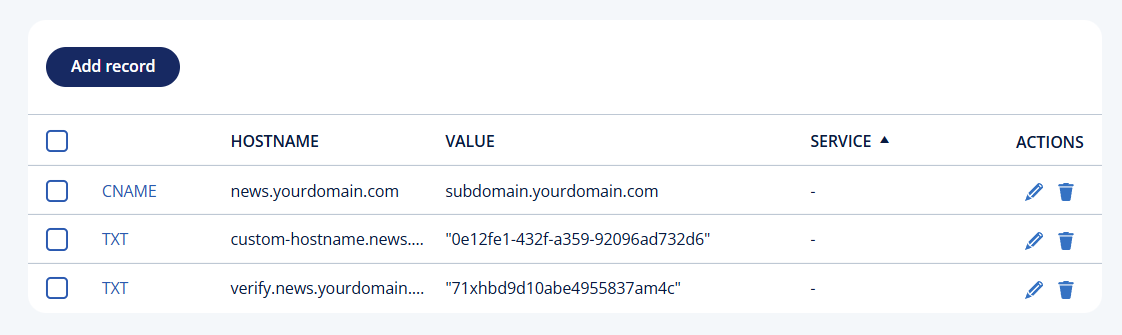
In this step, you need to add the required DNS records to your domain using your DNS provider. Your DNS provider is the service that manages how your domain points to different services on the internet. This is usually the same company where you bought your domain, such as Cloudflare, GoDaddy, Namecheap, or IONOS. You’ll need access to your DNS provider’s dashboard to add or edit records. You can usually find it by logging into your provider, going to Domains, and opening the DNS or configuration section.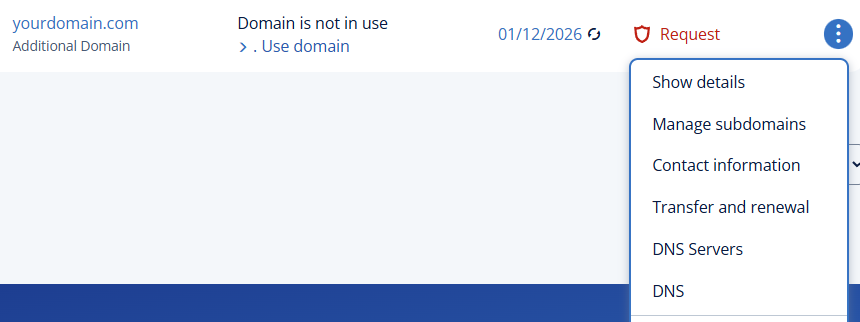
- TXT record (verify)
This record verifies that you own the domain and are authorized to use it with LetterBucket. - CNAME record
This points your newsletter subdomain to LetterBucket’s infrastructure so pages and links resolve correctly. - TXT record (custom-hostname)
This record is required to enable secure hosting and automatic SSL for your custom domain.
4. Set up Sending Domain
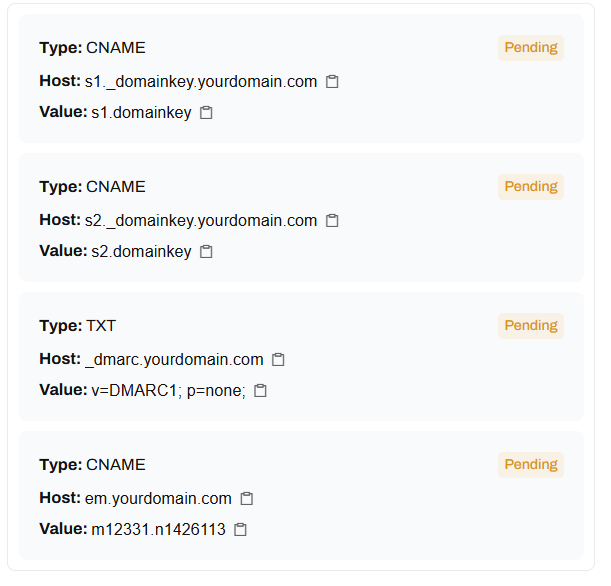
In this step, you configure the DNS records required to send emails from your domain. These records authenticate your domain with email providers and prove that LetterBucket is authorized to send on your behalf. Proper authentication is critical for deliverability and helps prevent your emails from being marked as spam. You’ll need to add the following records in your DNS provider:- CNAME records (DKIM)
These records enable DKIM signing, which allows receiving servers to verify that your emails have not been modified and are genuinely sent from your domain. - TXT record (DMARC)
This record defines how email providers should handle messages that fail authentication. The default policy is set to monitoring mode (p=none), which is safe and does not affect delivery. - CNAME record (email subdomain)
This record is used for link tracking and email infrastructure routing.
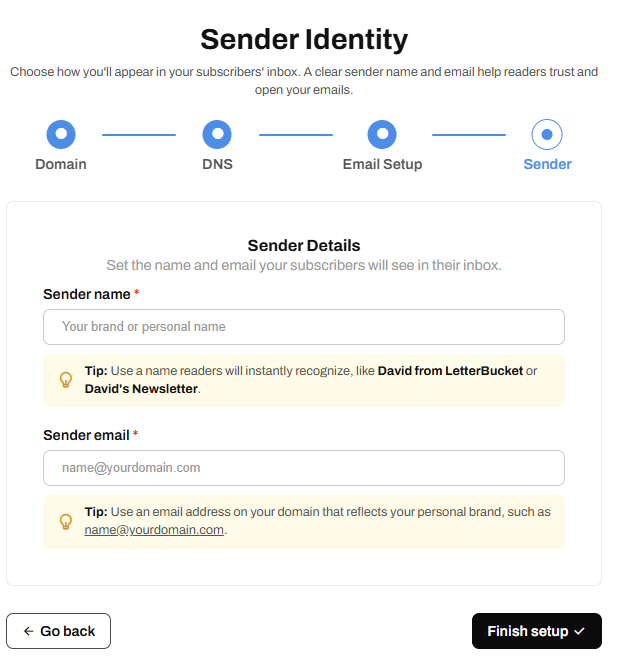
5. Set up the Sender Identity
In this final step, you define how your emails will appear in your subscribers’ inboxes.